July 15, 2026
The Ultimate Guide to OCR Technology (2026 Edition)
A complete guide to Optical Character Recognition: how OCR works under the hood, which tools to pick, and the practices that raise accuracy.
By Elango P · About this site
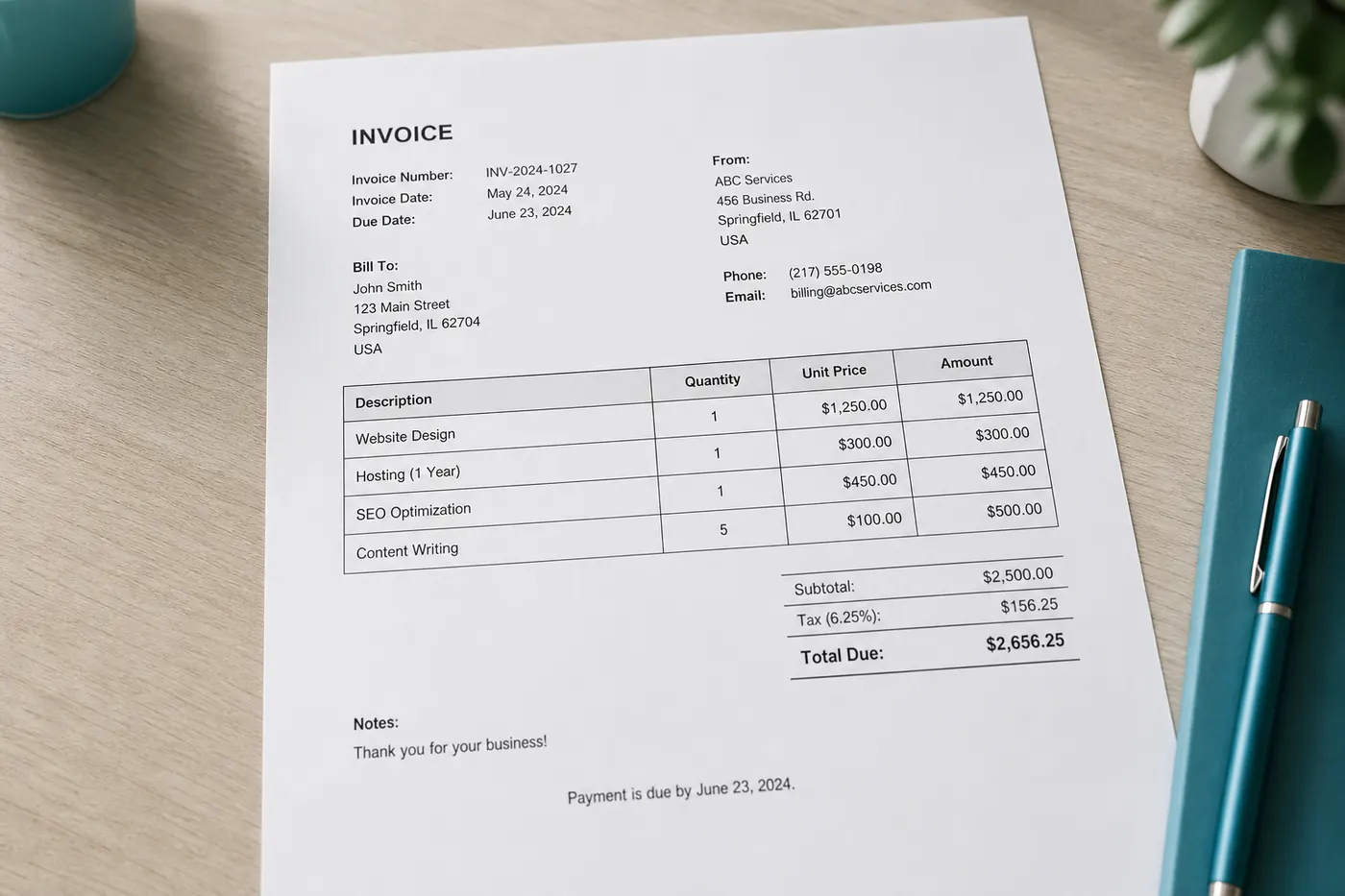
Optical Character Recognition (OCR) is the technology that turns pictures of writing into machine-readable text. Once text is digital, you can copy it, search it, translate it, and drop it into other software instead of retyping it by hand. This guide covers how OCR works, how to get good results from a free tool like imgtotext.in, how it stacks up against alternatives like Google Lens and manual typing, and how to sanity-check the output before you trust it.
Table of Contents
- What OCR Actually Does
- The Recognition Pipeline
- Formats and Languages
- Step-by-Step: Extracting Text From an Image
- What Affects Accuracy
- OCR vs. Related Technologies and Habits
- Choosing the Right Tool in 2026
- Trust the Output, But Verify It
- What OCR Doesn't Do
- Privacy Basics
- Related Reading
What OCR Actually Does
Early OCR systems matched rigid templates for each glyph — effective on one font and a clean scan, brittle everywhere else. Later engines used statistical features, and today's consumer tools mix a classical engine (like Tesseract) with a multimodal AI model that reads messy, real-world photos far better. imgtotext.in uses that hybrid: AI OCR first via Google's Gemini API, then Tesseract.js in the browser as a fallback once you've used up the free daily AI allowance.
In plain terms, OCR finds letter shapes in a picture and turns them into digital text. It handles fonts, mild skew, and noisy backgrounds far better than the template-matching engines of a decade ago — but it is still pattern matching, not reading comprehension, which is why verification still matters (more on that below).
The Recognition Pipeline
Regardless of brand, most OCR flows share the same stages:
- Acquire an image (scan, photo, screenshot).
- Preprocess — deskew, denoise, adjust contrast. This is what a "Clean Mode" toggle automates for screenshots and flat documents.
- Detect text regions versus background.
- Recognize characters or words, often with a language model guiding likely results.
- Postprocess — dictionary checks, line ordering.
- Export as plain text or a richer layout.
Humans still own a seventh, unofficial stage: verify — especially for numbers, names, and anything that isn't obviously replaceable if wrong.
OCR consumes rasters (PNG, JPG, JPEG, WEBP, GIF). A vector PDF with a real text layer doesn't need OCR at all — you can already select its text. Image-only PDFs need to become page images first; see Advanced OCR Techniques for that workflow. For the full mechanics of how a specific product routes AI versus browser OCR, see /how-it-works.
Formats and Languages
Most everyday OCR needs are covered by five image formats — PNG, JPG, JPEG, WEBP, and GIF — and imgtotext.in accepts all of them. Language selection matters more than people expect: script direction, character sets, and segmentation rules differ between languages, so telling the engine the wrong one is a common cause of "random" output. imgtotext.in supports twelve: English, Spanish, French, German, Italian, Portuguese, Russian, Chinese (Simplified), Japanese, Korean, Arabic, and Hindi. Pick the language that matches the page, not your interface language out of habit.
Step-by-Step: Extracting Text From an Image
- Prep the image. Shoot or crop upright, fill the frame with the text, keep focus sharp, and use a supported format. A screenshot beats a photo of a screen every time.
- Open the tool — https://imgtotext.in works the same on desktop and mobile, no account required.
- Upload by drag-and-drop or file picker.
- Choose the language that matches the content.
- Consider Clean Mode for screenshots and clean scans; leave it off (or compare both ways) for messy phone photos, chalkboards, and speckled thermal receipts.
- Run OCR and read the result against the source image — look for confused look-alike characters (
0/O,1/l/I), missing punctuation, and lines broken by columns or tables. - Copy or download a TXT file once you're satisfied.
AI OCR runs first for stronger accuracy on messy inputs; once you've used your 10 AI OCR uses per day, browser-based Tesseract.js keeps working so you're never fully blocked. Images aren't stored permanently — see /about and /faq for details.
What Affects Accuracy
OCR confidence is highest when contrast is strong, the font is standard, resolution is adequate, skew is mild, and the selected language matches the content. It drops with handwriting, heavy stylization, physical damage, and dense tables. A two-column magazine page can also come out with lines interleaved incorrectly, because layout analysis — deciding what counts as a line, paragraph, or column — is a harder problem than recognizing individual letters. Cropping columns into separate images before upload is the reliable fix.
For the full set of capture and preprocessing techniques that move the needle most, see Advanced OCR Techniques. For handwriting specifically, see OCR Use Cases & Workflows.
OCR vs. Related Technologies and Habits
OCR vs. ICR and document AI. "ICR" is often marketing language for handwriting-focused recognition — it overlaps heavily with what people just call handwriting OCR. Document AI / form parsing goes a step further, extracting structured fields (an invoice total as JSON) rather than a plain text blob. Barcodes and QR codes are a different problem entirely: they encode data deliberately, so a barcode reader will always beat OCR guessing at a code from pixels.
OCR vs. manual typing. For a one-page, 350-word document, typing at a realistic 40 words per minute takes roughly nine minutes plus time fixing your own typos. A clear scan through OCR often returns usable text in under a minute, including a read-through — even with a few minutes of cleanup for odd line breaks, OCR usually wins on longer documents. The trade-offs:
| Situation | Often better |
|---|---|
| Clean printed documents | OCR |
| Dense numeric tables | OCR, verified carefully |
| Heavy cursive | Manual, or OCR as a rough draft |
| Creative or logo text | Manual |
| Legal or sensitive wording | Either, always human-reviewed |
Manual typing still wins for very short text, layouts you're deliberately rewriting, sources you genuinely can't read yourself (OCR will guess wrong, not better), and workplaces with zero-upload policies. Everywhere else, OCR reduces the tedious part of the job to a review task, which is both faster and less fatiguing than retyping from scratch.
OCR vs. Google Lens. Lens is built into your phone camera for instant, on-device snippets — a phone number on a poster, a menu translation, a coupon code. It shines when the job ends the moment you copy a few words into Maps or Messages. A dedicated OCR site is built for volume, review, and reuse: multi-paragraph handouts, error logs, scanned forms, batches of images in one sitting, with an explicit language picker and a downloadable TXT file. Lens assumes you're standing and mono-tasking on a visual question; a browser tool assumes you can open a laptop (or at least a browser tab) long enough to crop, set a language, and paste into a document. Use Lens for walking-speed lookups and a dedicated tool for anything you'll edit, store, or share as a file.
Choosing the Right Tool in 2026
"Best OCR" depends on the job. Score any tool against your sample images, not a marketing screenshot — a five-image smoke test beats any listicle claim. A rough checklist:
- Image format support — PNG and JPEG at minimum; WEBP and GIF are useful extras.
- Language coverage — real multilingual work needs more than English.
- AI vs. classical engines — AI models tend to win on noisy photos; classical engines like Tesseract remain useful offline and as a fallback.
- Fair usage after free tiers — prefer tools that degrade gracefully instead of hard-blocking you.
- Privacy stance — confirm there's no permanent storage of uploads.
- Mobile UX — you'll upload from a phone often.
- Honest PDF handling — many "PDF OCR" tools actually require exporting pages as images first; a tool that says so up front saves you frustration.
Free browser tools like imgtotext.in fit individuals and light team use: drag-and-drop, language selection, AI OCR with a Tesseract.js fallback, and no watermarks on exported text. The general OCR workflow is image-focused, while PDF to Text renders scanned PDF pages directly (see Advanced OCR Techniques).
Desktop suites and Tesseract CLI matter when you need batch folders, searchable PDF output, or on-premises processing for IT policy reasons. Accuracy on poor photos usually lags a strong AI service, but the data never leaves your machine.
Phone OS built-ins (live text / select text in photos) are great for one-off snippets already in your camera roll, weaker for long or mixed-language documents.
Cloud vision APIs (Google Cloud Vision, AWS Textract, Azure Document Intelligence) suit product teams building OCR into an app — see OCR for Developers for that path. If you only need occasional human-driven extractions, a free site is simpler than wiring up keys, quotas, and billing alerts.
To evaluate quickly: gather five representative images (a screenshot, a phone photo of paper, a receipt, a slide, a dense paragraph), run them through your candidates, and time upload-to-usable-text including proofreading. Many people end up keeping one online tool for speed and one offline tool for sensitive files.
Trust the Output, But Verify It
Free OCR is fast enough that people paste results into emails and filings without a second look. That's fine for a grocery list; it's reckless for totals, IDs, and legal wording. Before you trust an extraction:
- Weigh sensitivity. A public flyer is low-stakes; an invoice, contract, or ID is not. For anything sensitive, read the privacy policy of whatever tool you're using and think twice before uploading government IDs to a general-purpose OCR tool at all.
- Check capture quality first. If you have to squint at the image, the engine will too — fix the photo before blaming the software.
- Confirm your settings. Right domain, right language, Clean Mode toggled deliberately rather than by default.
- Skim the whole extract once against the image. Are paragraphs in a sensible order? Did a logo become a fake word? Did columns shuffle?
- Verify high-cost fields character-by-character: money amounts, dates, IDs, URLs, phone numbers, and proper nouns. This is the single highest-leverage step — a fluent-looking paragraph is not the same thing as a correct one, because models prefer real dictionary words over weird-but-true tokens like SKUs.
- Watch for red flags before you file anything: long runs of random consonants, repeated lines not in the source, a digit count that doesn't match the original, or a URL with swapped characters (
rnvsm). These mean recapture, not polish.
Label unverified drafts clearly when sharing them with teammates, and don't overwrite a known-good document with unchecked OCR text.
What OCR Doesn't Do
- Guarantee legal authenticity — it can misread a clause with total confidence.
- Preserve perfect typography and pagination by default.
- Replace human judgment on medical, financial, or safety-critical text.
- Reliably reconstruct complex multi-column reading order without help.
- Retrain itself on your specific documents — you improve results by improving the input (lighting, crop, language), not by teaching the model.
Regulated industries (healthcare, finance, legal discovery) generally need contracted or on-premises OCR, not a free consumer tool.
Privacy Basics
Sending an image to any online OCR service is a data decision. Prefer tools that state clearly they don't permanently store uploads — imgtotext.in is built that way and is privacy-focused by design (/about, /faq), but that doesn't replace your own judgment about what belongs in the frame. Crop out anything you don't need recognized before you upload.
Related Reading
- OCR Use Cases & Workflows — students, businesses, receipts, and handwriting in practice
- Advanced OCR Techniques — preprocessing, PDFs, and accuracy in depth
- OCR for Developers — APIs, JavaScript, and Python when a web UI isn't enough
Try free image to text OCR
Upload an image to extract editable text — AI OCR runs first (images go to Google Gemini via our server); browser OCR is the fallback. No signup required.
Extract text from images