June 2, 2026
How to Extract Text from Images
Step-by-step guide to converting screenshots, photos, and scans into editable text with free online OCR.
By Elango P · About this site
Extracting text from images used to mean staring at a scan and retyping every word. Today you can drop a photo or screenshot into a free online OCR tool and copy editable text in seconds. This guide walks through a practical workflow using OCR Text Extractor at imgtotext.in—no install, no account required for casual use.
Whether you have a board photo from a lecture, a receipt on your phone, or a scanned invoice, the same steps apply. Good lighting and a clear crop matter more than fancy software.
What OCR Does (in Plain Terms)
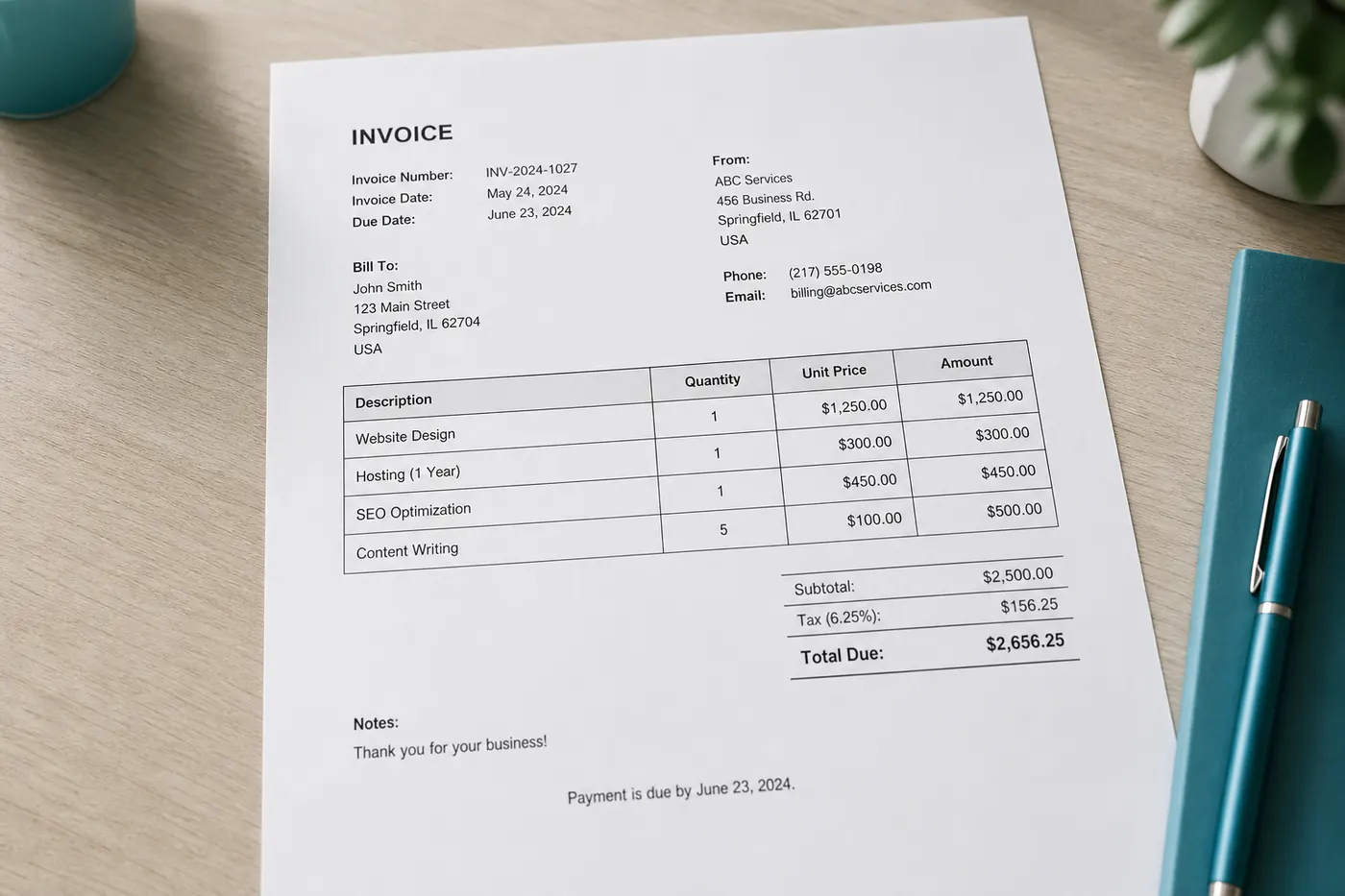
Optical Character Recognition (OCR) finds letter shapes in a picture and turns them into digital text. Modern engines use machine learning, so they handle fonts, slight skew, and noisy backgrounds better than older systems.
On imgtotext.in, AI OCR (powered by Gemini via their API) runs first for stronger accuracy. If you have used your daily AI allowance, browser-based Tesseract.js continues to work without locking you out. You can read more about the pipeline on /how-it-works.
Before You Start: Prep the Image
A few minutes of prep saves a long cleanup session later.
- Shoot or crop upright. Text should read left-to-right (or right-to-left for Arabic) without a strong tilt. Straighten in your phone’s edit tool if needed.
- Fill the frame. Crop away empty desk space, fingers, and unrelated UI chrome. The more of the image that is actual text, the better.
- Prefer sharp focus. Blurry characters are the fastest way to get gibberish. Tap to focus on the text before you shoot.
- Use a supported format. The tool accepts PNG, JPG, JPEG, WEBP, and GIF. Convert exotic formats first if needed.
- Consider Clean Mode. For screenshots and clean document scans, Clean Mode can reduce noise and improve recognition.
If you are working from paper, place the page on a flat surface with even light. Avoid harsh shadows across the lines.
Step-by-Step: Extract Text on imgtotext.in
1. Open the free tool
Go to https://imgtotext.in on a desktop or phone. The layout is mobile responsive, so the same flow works on both.
2. Upload your image
Drag and drop the file onto the upload area, or use the file picker. You do not need to create an account just to try a conversion.
3. Choose the language
Select the language that matches the text on the image. Supported options include English, Spanish, French, German, Italian, Portuguese, Russian, Chinese (Simplified), Japanese, Korean, Arabic, and Hindi—twelve languages in total. Matching the language to the content improves word choice and script handling.
4. Toggle Clean Mode when it fits
Clean Mode is useful for screenshots, typed documents, and high-contrast scans. For messy phone photos of chalkboards or crumpled receipts, try without it first, then compare.
5. Run OCR and review the output
Wait for the result. Read the extracted text carefully: look for confused look-alike characters (0/O, 1/l/I), missing punctuation, and broken lines from columns or tables.
6. Copy or download
Copy the text to your clipboard, or download a TXT file. Prefer a quick visual proofread before you paste into email, notes, or a spreadsheet.
Privacy note: images are not stored permanently. The site is built with a privacy-focused approach—see /about for more about the project and who builds it.
Example Scenario: Lecture Slide Photo
Maya missed the last slide of a statistics lecture. A classmate sent a slightly dark phone photo of the projector screen.
She opens imgtotext.in on her laptop, drops the photo, picks English, and enables Clean Mode because the slide is mostly white background with black text. The output captures formulas and bullet points with only two OCR quirks: a multiplication sign read as x and a Greek letter approximated as Latin text. She fixes those two spots in under a minute, pastes into her notes app, and moves on.
Without OCR she would have retyped three dense paragraphs. With OCR she spent more time understanding the content than copying it.
Tips for Stronger Results
- One language per image when possible. Mixed English/Hindi pages can work, but selecting the dominant language usually helps.
- Split dense pages. Very tall scrolls or multi-column magazine layouts sometimes confuse line order. Crop sections separately if column order looks wrong.
- Screenshots beat photographs of screens. If the text is already on your device, capture a screenshot instead of photographing the display. See also our guide on converting screenshots to editable text.
- Know the AI daily limit. There are 10 AI OCR uses per visitor per day. After that, browser OCR (Tesseract.js) remains available so you are not blocked.
- Tables need a second pass. OCR often returns table cells as plain lines. Paste into a spreadsheet and realign columns manually when needed.
Common Mistakes to Avoid
Uploading the wrong page. Double-check thumbnail before you run OCR—especially when batching several receipt photos.
Expecting perfect handwriting results every time. Cursive and messy print are harder. For hand-written notes, get closer, raise contrast, and see our handwriting OCR tips.
Assuming PDFs upload the same way. This tool focuses on images. For multi-page PDFs, export each page as an image or take clear screenshots of the page view, then run OCR per page. Our PDF OCR guide covers that workflow honestly.
Skipping the language dropdown. Leaving the wrong language selected is a frequent cause of “random” output.
When Manual Cleanup Still Matters
OCR is an assistant, not a notary. Always verify names, numbers, amounts, dates, and legal wording. For invoices and IDs, a human check is non-negotiable even when the extraction looks clean.
For everyday study notes, recipes, and reference lists, light proofreading is usually enough.
Try It
Ready to convert your next image? Open OCR Text Extractor, drop a PNG or JPG, pick your language, and copy the text. If you have questions about limits, privacy, or supported formats, check the /faq.
Related Reading
- /blog/ocr-accuracy-tips — practical ways to improve recognition quality
- /jpg-to-text — JPG-specific workflow tips
- /blog/convert-screenshots-to-editable-text — PNG screenshots and transparent images
Try free OCR now
Upload an image and extract editable text in your browser — no signup required.
Open OCR tool