July 6, 2026
How to Convert Screenshots to Editable Text
Turn UI screenshots and error dialogs into copy-pasteable text with Clean Mode and OCR.
By Elango P · About this site
Screenshots trap useful words inside pixels: error dialogs, pricing tables, chat decisions, admin panels, and article clippings. Converting those screenshots to editable text means you can paste into tickets, docs, and emails without retyping. This guide focuses on a screenshot-first workflow with imgtotext.in and Clean Mode.
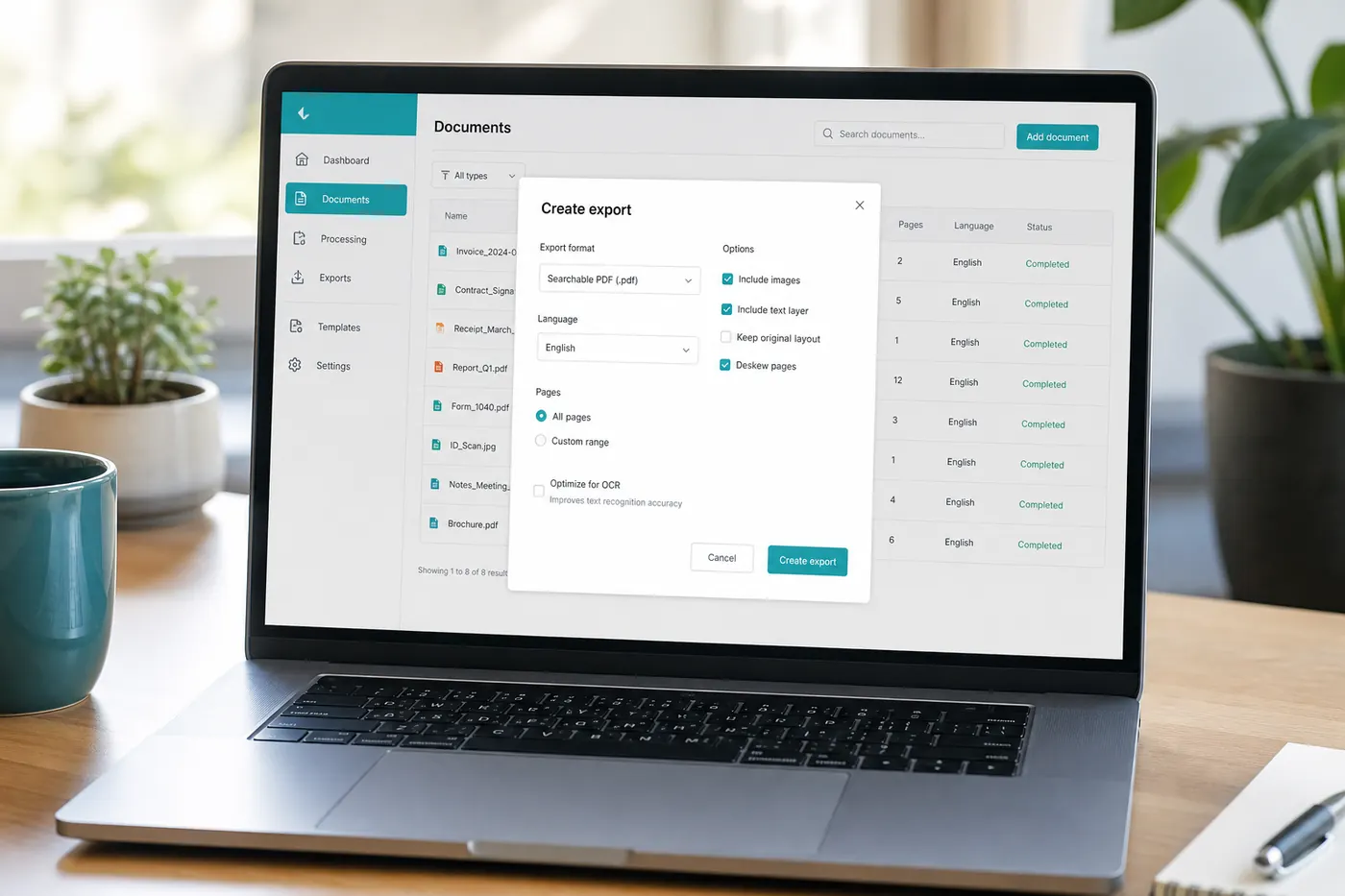
Why Screenshots OCR Better Than Photos of Screens
A native screenshot records the framebuffer: sharp glyph edges, predictable anti-aliasing, no camera blur, no moiré. Photographing a monitor adds noise OCR must fight. Whenever the text already lives on a device you control, capture a screenshot.
PNG is the usual lossless format; JPG screenshots are rarer but still accepted. imgtotext.in supports PNG, JPG, JPEG, WEBP, and GIF.
Capture Well Before You OCR
Desktop
- Use OS shortcuts (e.g., region capture) so you only grab the paragraph you need.
- Zoom the source page (Ctrl/Cmd +) for small fonts, then capture.
- Hide confidential sidebars before shooting.
Mobile
- Use system screenshot gestures, not a second phone filming the first.
- Crop status bars and notch areas if they create spurious characters.
More mobile guidance: /blog/ocr-for-mobile. PNG-focused notes: /blog/convert-screenshots-to-editable-text.
Conversion Steps on imgtotext.in
- Open https://imgtotext.in.
- Drop the screenshot.
- Select the UI or document language among twelve: English, Spanish, French, German, Italian, Portuguese, Russian, Chinese Simplified, Japanese, Korean, Arabic, Hindi.
- Enable Clean Mode—purpose-built for screenshots and documents.
- Run OCR (AI first via Gemini’s API; browser Tesseract.js after the 10 AI OCR uses per visitor per day).
- Copy text or download TXT.
- Paste into your destination and restore formatting (bullets, headings) as needed.
Privacy-focused, no permanent image storage: /about. Mechanics: /how-it-works. FAQ: /faq.
Example Scenario: Turning a Slack Decision Into Spec
Dev team argues in Slack; the final decision lives in a long thread. Someone pastes a PNG screenshot into the sprint ticket “for context,” but future search cannot find the words.
Alex downloads the PNG, runs it through imgtotext.in with Clean Mode and English, and pastes cleaned text under Acceptance Criteria. A few emoji become odd symbols and get deleted. The ticket is now searchable: three months later, QA finds the decision by keyword instead of hunting images.
Clean Mode vs Off for Screenshots
For flat UI screenshots and document page captures, Clean Mode is usually the right default. Turn it off experimentally if the screenshot includes a photo region with overlaid captions and results look worse. A/B once; remember the pattern for your product’s UI theme (light themes often OCR more easily than low-contrast dark themes).
Handling Multi-Column and Multi-Window Shots
If you captured an entire desktop with two windows, split crops:
- Left window screenshot crop → OCR
- Right window crop → OCR
- Merge text with labels
Reading order errors shrink dramatically.
Code and Terminal Screenshots
Developers screenshot terminals constantly. OCR can recover logs when copy-paste was forgotten, but:
- Prefer selecting text in the terminal whenever possible.
- Widen the window before capture to reduce wrapping.
- Re-indent in the editor after OCR—spaces may collapse.
- Triple-check characters in hashes and keys; never trust OCR alone for production secrets. If secrets appeared, rotate them.
Dark Mode, Transparency, and Overlays
Glassmorphic UIs and transparent panels reduce contrast. Increase theme contrast or switch to light mode, then recapture. Floating notifications that overlap text should be dismissed before capture.
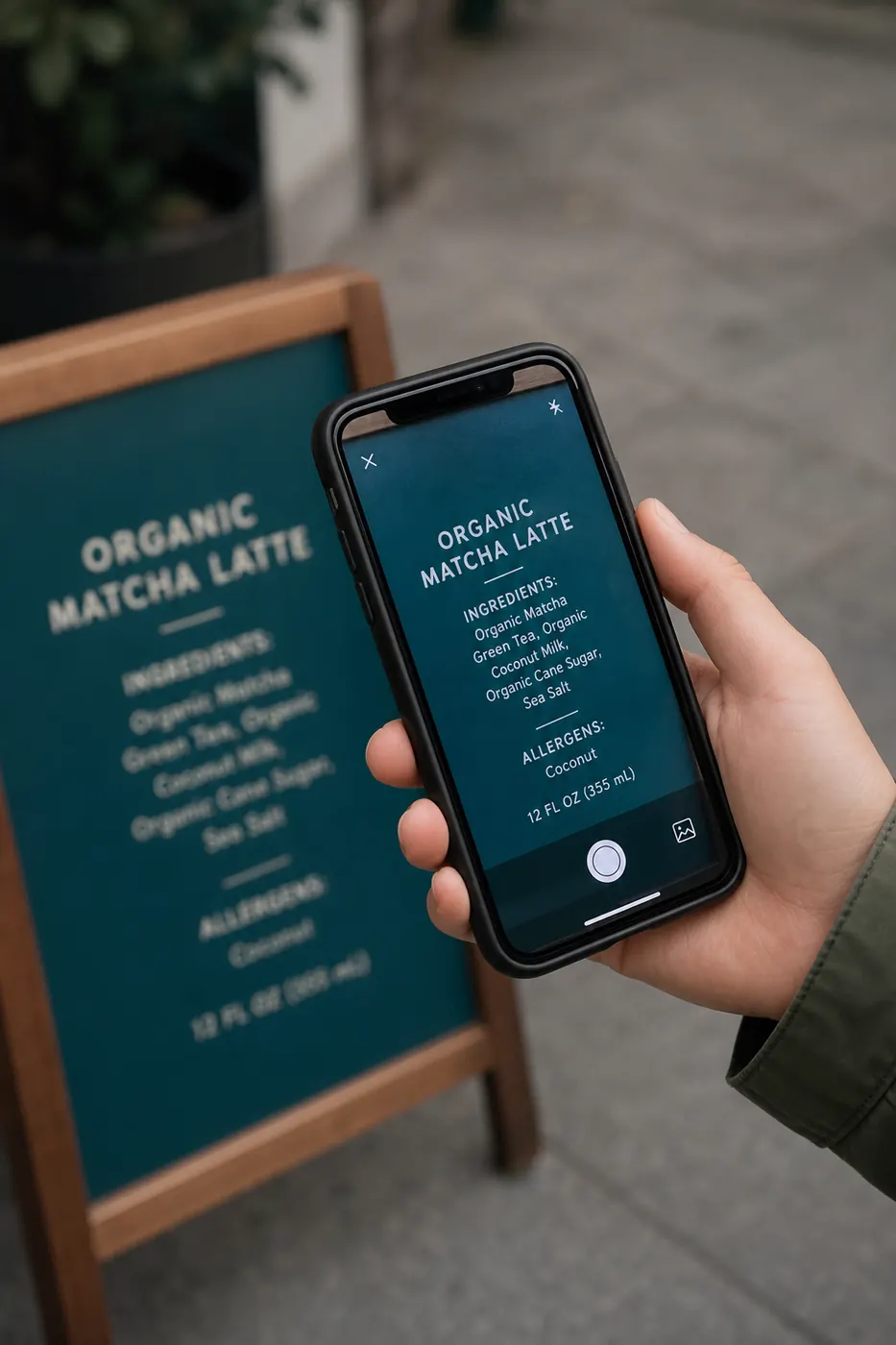
If you only have a photo of someone else’s screen, apply phone-photo discipline (angle, glare) and expect more cleanup—or ask for a native screenshot.
From Text Blob to Polished Document
OCR returns characters, not your brand’s styles. After pasting:
- Split paragraphs.
- Reapply list formatting.
- Fix hyphenation from line wraps in the source UI.
- Verify links—OCR may break URLs across lines.
Team Habits Worth Spreading
Encourage teammates to send text or native screenshots destined for OCR rather than vague photos. Share a one-line tip: “Drop PNGs into imgtotext.in with Clean Mode.” Compare effort against typing in /blog/ocr-vs-manual-typing. General extraction: /blog/how-to-extract-text-from-images. Accuracy: /blog/ocr-accuracy-tips.
Try It
Screenshot this section (or any settings panel), upload it to imgtotext.in with Clean Mode enabled, and paste the result into a scratch note. Check wrapping and punctuation—then decide how much of your weekly screenshot pile deserves the same treatment.
Compliance and Redaction Before Capture
Because screenshots are easy, people accidentally include customer emails, session tokens in URLs, or internal hostnames. Build a habit: glance at the corners before you hit the shortcut. Black out secrets in a simple markup tool if you must share the image—or crop them out before upload.
After OCR, search the extracted text for patterns like Bearer , api_key, and internal domains. If something sensitive slipped through, treat the paste buffer and TXT download as compromised for sharing purposes and rotate credentials when appropriate.
Browser Zoom and HiDPI Quirks
On high-density displays, what looks large to your eye may still be modest in pixel height for OCR. Explicit browser zoom before capture is more reliable than relying on OS UI scaling alone. Conversely, ultra-large captures of simple dialogs waste upload time without improving recognition—balance size and clarity.
Versioning Specs Extracted From UI
Product teams sometimes screenshot staging UIs as interim specs. When OCR turns those into text, add a timestamp and environment label in the ticket (Staging 2026-07-14). UI copy changes quickly; orphaned OCR text without provenance creates arguments about which wording is authoritative.
Keyboard-Only and Accessibility Capture Paths
Some users capture screens with assistive workflows or external keyboards. The OCR steps remain identical: produce an image file, upload, Clean Mode on, copy text. If your organization supports only certain browsers, validate imgtotext.in on those browsers during onboarding so people are not discovering blocks mid-incident.
Related Reading
- /blog/convert-screenshots-to-editable-text — PNG-specific guidance
- /blog/ocr-accuracy-tips — raise recognition quality
- /blog/how-to-extract-text-from-images — end-to-end basics
Try free OCR now
Upload an image and extract editable text in your browser — no signup required.
Open OCR tool