June 30, 2026
OCR for Mobile: Extract Text from Phone Photos
Use mobile browsers to photograph documents and convert them to editable text on the go.
By Elango P · About this site
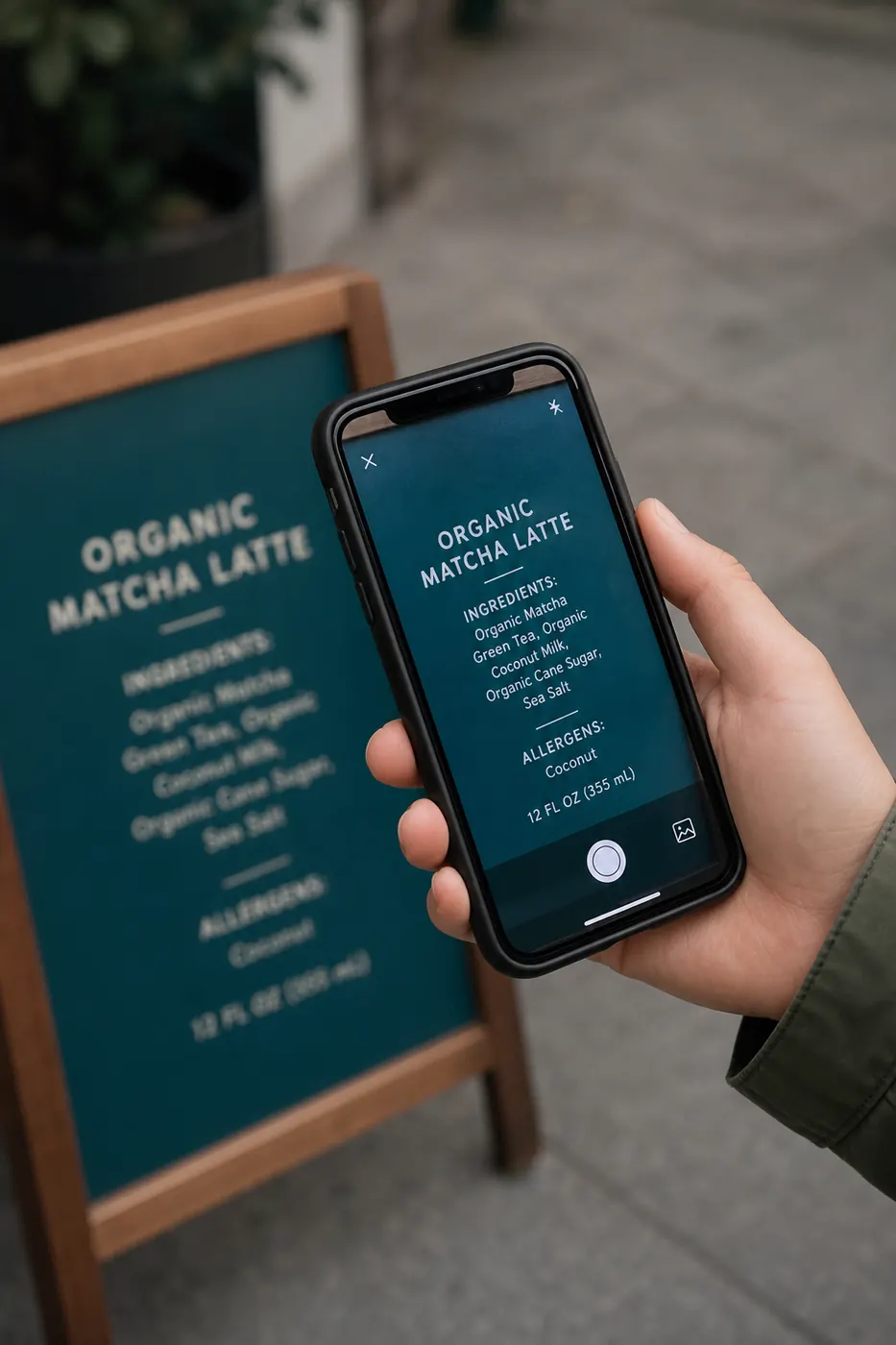
Most OCR moments start on a phone: a whiteboard after class, a shop receipt, a gate pass, a slide you need in chat. Installing a heavy desktop suite is absurd for those moments. A mobile-responsive OCR website lets you capture, upload, and copy text before the meeting ends.
Here is how to get reliable results on phones and tablets with imgtotext.in.
Why Mobile OCR Feels Different
Phones introduce motion blur, perspective distortion, rolling shutter under LEDs, and aggressive JPG compression. They also give you the advantage of being on-site with the document. Good technique beats seeking a mythical “mobile-only AI.”
imgtotext.in is mobile responsive: the same drag-and-drop / file-picker flow works in mobile Safari and Chrome. Formats include PNG, JPG, JPEG, WEBP, and GIF—covering camera photos and saved screenshots.
Capture Checklist for Phones
- Tap to focus on the text, not the table edge.
- Hold steady for half a second after the shutter—readout still settles.
- Align the page so it fills the frame; use document mode if your camera app has it.
- Avoid digital zoom; move your body closer instead.
- Kill glare by tilting laminated cards.
- Prefer screenshots when the text is already on the phone screen (boarding passes in apps, articles, code).
Accuracy fundamentals: /blog/ocr-accuracy-tips.
Upload and Extract on the Go
- Open https://imgtotext.in in the mobile browser.
- Upload from camera roll or file app.
- Pick the language—twelve supported: English, Spanish, French, German, Italian, Portuguese, Russian, Chinese Simplified, Japanese, Korean, Arabic, Hindi.
- Toggle Clean Mode for screenshots and neat scans; leave off for rough chalk photos until you compare.
- Run OCR. AI path first (Gemini via their API); after 10 AI OCR uses per visitor per day, browser Tesseract.js remains available.
- Copy text into Notes, email, or WhatsApp. Download TXT when you need a file.
Privacy-focused processing without permanent image storage is summarized on /about. FAQ: /faq. How it works: /how-it-works.
Example Scenario: Conference Badge Follow-Up
Rita photographs a speaker’s poster abstract between sessions—dim hallway lighting. First OCR pass is messy. She walks to the lobby light, retakes, crops the abstract column tightly, sets English, and retries on imgtotext.in.
The abstract lands almost clean. She pastes into her CRM note with the speaker’s name before the next talk. Competing apps that required account creation would have cost the same minutes she used for a better photo.
Mobile Screenshots Are First-Class Citizens
UI text on your phone is often sharper as a screenshot than as a photograph of another device. On iOS and Android, use built-in screenshot gestures, crop status bars if they distract, and upload the PNG. Clean Mode usually helps. Deep dive: /blog/convert-screenshots-to-editable-text and /blog/convert-screenshots-to-editable-text.
Data-Friendly Habits
- Crop before upload to shrink bytes on slow LTE.
- Delay non-urgent OCR until you are on Wi-Fi if images are huge.
- Budget AI uses during travel days when you process many tickets—browser OCR still works offline from a network perspective only after assets load; you still need connectivity to reach the site.
Comparing Built-in Live Text vs a Dedicated Site
OS-level “select text in image” tools are perfect for a phone number. They are weaker for long multi-paragraph extracts, mixed languages, and when you want a TXT download plus a consistent desktop/mobile workflow. Keep both: live text for snippets, imgtotext.in for longer conversion sessions.
Multilingual Field Work
Field researchers photographing Mandarin signs or Arabic shop names should switch the OCR language to match—English default settings cause avoidable junk. Same for Hindi materials and European languages among the twelve supported.
Handwriting on Mobile
Notebook photos from lectures are common. Expect to edit. Shoot print writing when possible. Guide: /blog/handwriting-ocr. Students: /blog/ocr-for-students.
Security on Shared Devices
Log out of other accounts elsewhere as usual; for OCR, prefer not uploading ID cards on a borrowed tablet. Crop unrelated personal content. Company devices may restrict cloud OCR—follow IT rules.
Try It
Stand up, photograph any printed flyer near you (non-sensitive), and convert it at imgtotext.in from your phone browser. If the extract disappoints, fix capture using the checklist and retry once. That loop is the entire skill.
Airplane Mode Myths and Offline Reality
A common misconception is that browser OCR means full offline capability the moment the page has loaded once. In practice you still need to reach imgtotext.in to start a session, and AI OCR requires connectivity to the AI path. After the page and browser engine assets load, classical recognition can feel “local,” but treating mobile OCR as an online workflow keeps expectations honest—especially on flights with flaky captive portals.
Practical travel tip: when you know you will process many boarding passes and hotel confirmations on arrival day, screenshot them while you still have reliable Wi-Fi, then convert in the lobby. Store TXT downloads in an offline notes app so passport control queues do not depend on another upload.
Accessibility on Small Screens
Editable text is easier to magnify, reflow, and read with system text-to-speech than a static screenshot. Travelers with fatigue or low vision often prefer hearing an address instead of pinching a glossy photo in bright sun. After OCR, increase system font size in your notes app rather than zooming the original image repeatedly.
If you share extracted text with a driver or colleague, you can also translate it in a separate app—something far harder when the only artifact is a crooked JPG.
Battery and Heat
OCR itself is brief, but bright screens outdoors drain batteries. Lower brightness after capture, close unused camera apps, and avoid repeated AI retries on the same terrible photo—retake instead. Heat-throttled phones also produce blurrier shots; pause in shade if the device feels hot.
Building a Personal Mobile Shortcut
Create a home-screen bookmark to https://imgtotext.in for one-tap access. Pair it with a folder album named ocr-inbox in Photos so you know which shots still need extraction. Clear the album weekly after TXT files land in your notes. That tiny process prevents the “thousand screenshots, zero searchable notes” failure mode.
Related Reading
- /blog/how-to-extract-text-from-images — general steps
- /blog/how-to-extract-text-from-images — zero-install philosophy
- /jpg-to-text — camera JPG specifics
Try free OCR now
Upload an image and extract editable text in your browser — no signup required.
Open OCR tool