June 16, 2026
OCR Accuracy Tips: Get Better Text Extraction
Improve OCR results with lighting, crop, resolution, language settings, and Clean Mode.
By Elango P · About this site
OCR quality is mostly decided before you click “extract.” Engine choice matters, but lighting, crop, language, and review habits matter more. This playbook collects practical accuracy tips you can apply immediately with imgtotext.in or any similar image OCR tool.
Tip 1: Make Text Large and Level in the Frame
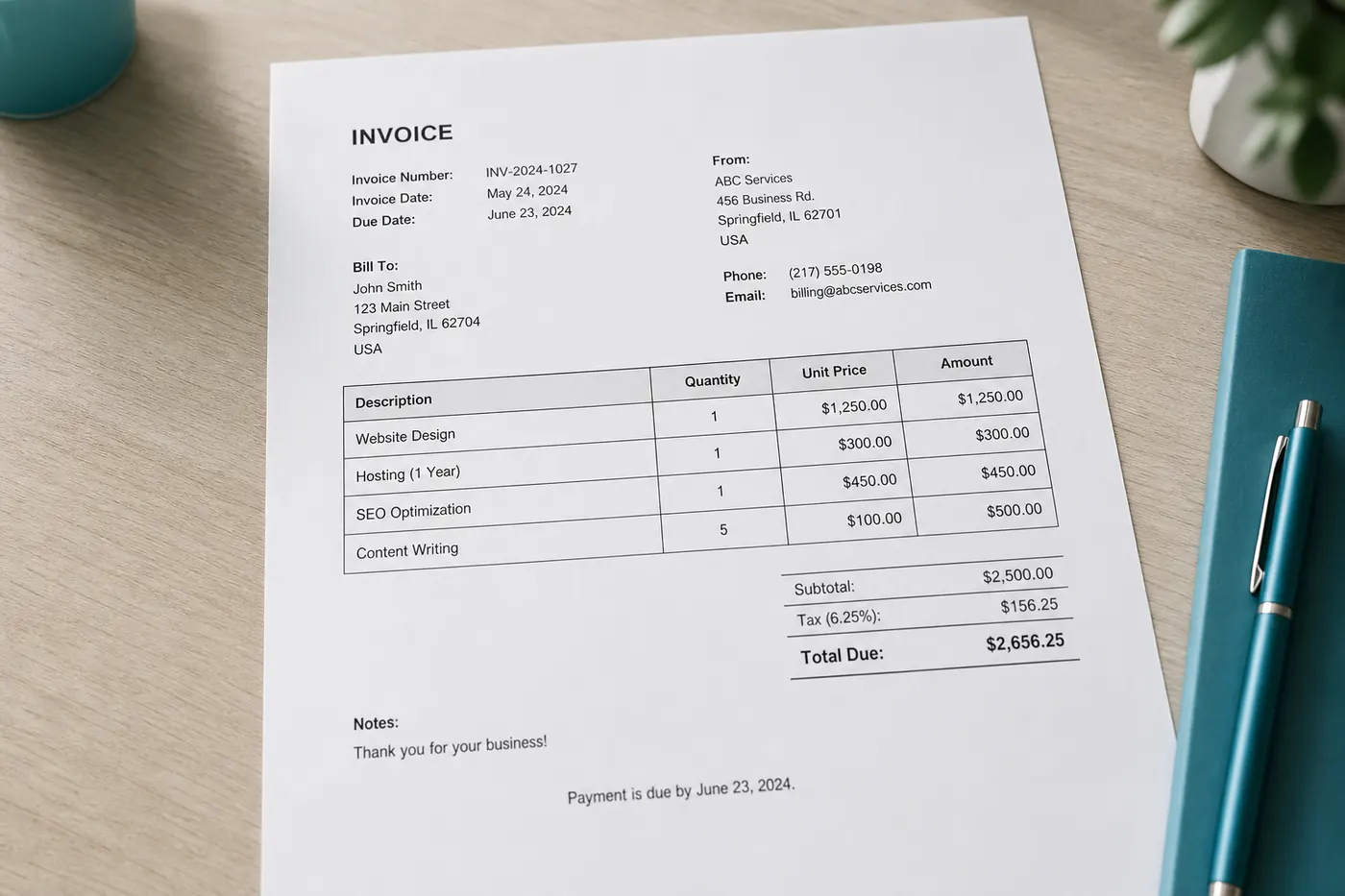
If you must pinch-zoom to read the photo yourself, OCR will struggle. Move closer or crop after capture so characters occupy enough pixels. Rotate until baselines are horizontal; even a few degrees of skew increases confusion between characters.
Use your phone’s document or perspective tools when available, then export a flattened image.
Tip 2: Prefer Screenshots Over Photos of Screens
Photographing a monitor introduces moiré, glare, and color casts. Capture a native screenshot instead (often PNG), then upload. Clean Mode on imgtotext.in is designed with screenshots and documents in mind—use it for these tidy inputs.
See also /blog/convert-screenshots-to-editable-text and /blog/convert-screenshots-to-editable-text.
Tip 3: Match the Language Exactly
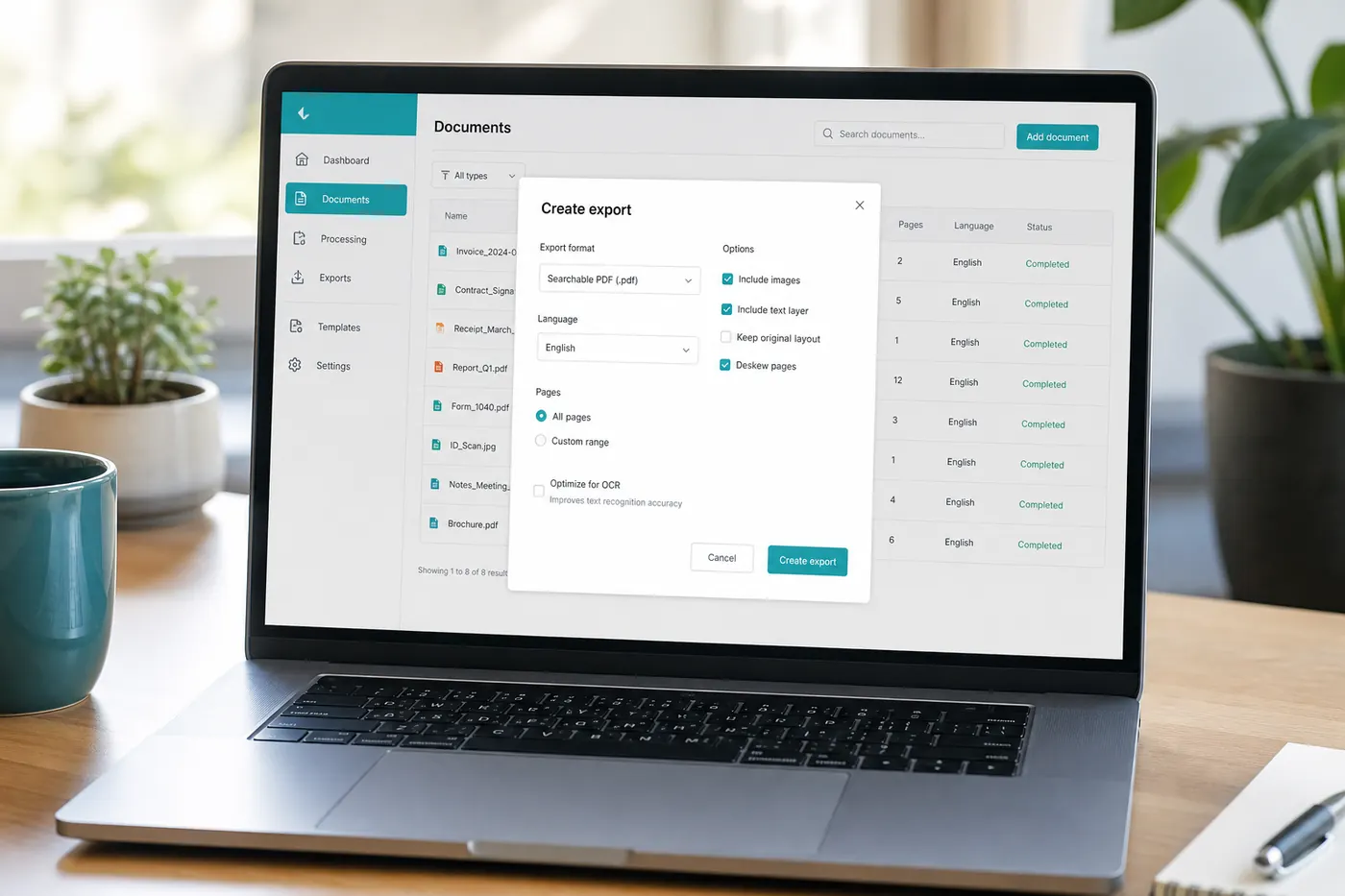
A wrong language setting is a silent killer. imgtotext.in supports English, Spanish, French, German, Italian, Portuguese, Russian, Chinese Simplified, Japanese, Korean, Arabic, and Hindi. Pick the language of the content—not your UI language by habit.
For mixed-language pages, crop into monolingual regions when accuracy is critical.
Tip 4: Use Clean Mode Deliberately
Clean Mode helps on high-contrast documents and screenshots. On dim chalkboard photos or textured craft paper it may not help—or may hurt. Run a quick A/B when stakes are high and you still have AI uses remaining.
Tip 5: Budget AI Uses for Hard Images
AI OCR (Gemini via their API) runs first and generally handles noise and odd layouts better. There are 10 AI OCR uses per visitor per day; afterward, browser OCR via Tesseract.js continues. Strategy:
- Spend AI quota on handwriting, low light, and complex layouts.
- Use browser OCR for crisp screenshots when you are near the cap.
- Split multi-page jobs across days if you need maximum AI quality on every page.
How the pipeline works: /how-it-works.
Tip 6: Simplify Backgrounds
Busy backgrounds—wood grain desks, patterned tablecloths, UI ads beside an article—add false ink. Crop tightly. Place paper on a plain contrasting surface before shooting.
Tip 7: Mind Compression and Format
Supported formats: PNG, JPG, JPEG, WEBP, GIF. Prefer PNG or high-quality JPG. Re-saving a JPG many times increases artifacts around letter edges. Keep originals.
Tip 8: Split Columns and Tables
Multi-column magazines and comparison charts confuse reading order. Crop column A, OCR, crop column B, OCR, then merge. For tables, accept that you will rebuild structure in a spreadsheet; focus OCR on getting cell text right.
Tip 9: Verify High-Cost Tokens First
After extraction, audit in this order:
- Currency amounts and totals
- IDs, account numbers, tracking codes
- Dates and times
- Proper nouns (people, streets, cities)
- Everything else
Humans skim prose and miss a single bad digit. Force yourself to check digits deliberately.
Tip 10: Control Glare and Shadows
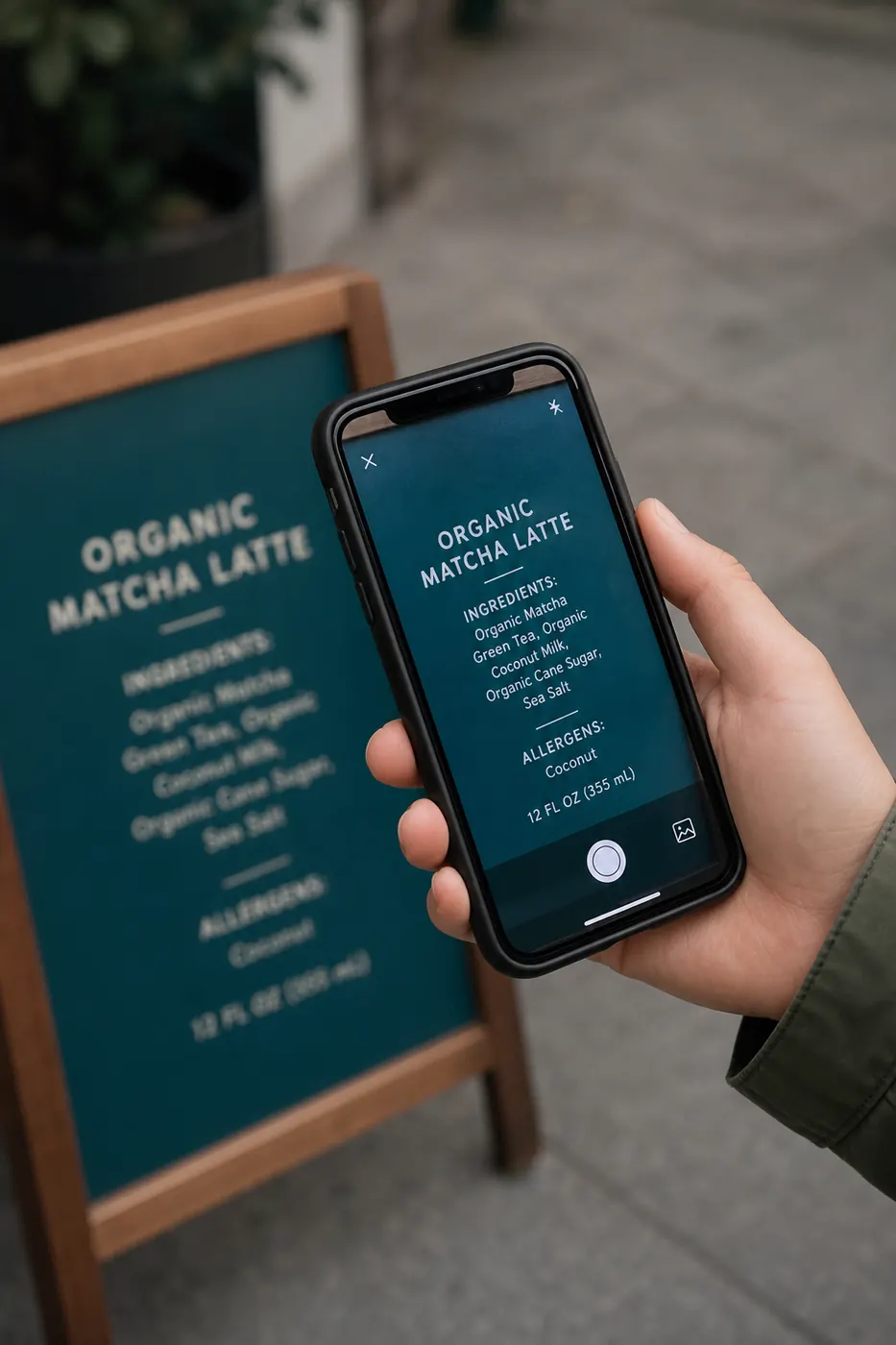
Laminated IDs and glossy magazine pages bounce light into white blobs that erase words. Tilt the item until glare moves off the text. For shadows of your phone or head, change stance or add a second light.
Example Scenario: Two Passes on a Menu Photo
Diego photographs a restaurant menu outdoors at noon. The first OCR pass on imgtotext.in (English, no Clean Mode) mangles half the dish names under harsh shadow. He steps into shade, retakes with the menu flat on a seat, crops to one page column, enables Clean Mode, and retries.
Dish names jump to near-perfect. Prices still need a scan for $ vs S issues. He pastes into a shared trip note in under five minutes—far less than typing the whole menu for friends with allergies.
Tip 11: Know Engine Failure Patterns
Common substitutions: rn→m, cl→d, O↔0, I↔l↔1. In code and serials, review character by character. In prose, spellcheck in your editor catches many but invents wrong “corrections” on names—disable autocorrect when pasting critical lists.
Tip 12: Keep Source Images Private When Needed
imgtotext.in does not permanently store images and is privacy-focused, but you should still crop out unrelated personal data. Workplace policies may require offline OCR for some documents—follow them. Learn more on /about and /faq.
Tip 13: Mobile Capture Discipline
Hold steady; tap to focus on text; wait for AE/AF lock; avoid digital zoom. The mobile-responsive site works in the phone browser, so you can shoot and upload immediately—see /blog/ocr-for-mobile.
Tip 14: Do Not Expect Magic on Unreadable Sources
If a word is illegible to you at full resolution, OCR is guessing. Mark those gaps clearly in your notes ([illegible]) instead of trusting a confident wrong word.
Tip 15: Build a Personal Checklist
Tape a short checklist near your desk or in a phone note:
- Level & crop
- Language
- Clean Mode decision
- Extract
- Verify numbers & names
- Copy / TXT download
Habits beat one-off heroics.
Try It
Take a previously “bad” OCR image, apply three tips from this article (crop, lighting, language), and rerun at imgtotext.in. Keep both outputs to see what changed. That feedback loop trains intuition faster than reading alone.
Related Reading
- /blog/how-to-extract-text-from-images — full beginner walkthrough
- /blog/handwriting-ocr — special case of difficult input
- /blog/ocr-for-mobile — cleaner inputs from paper
Try free OCR now
Upload an image and extract editable text in your browser — no signup required.
Open OCR tool