June 4, 2026
OCR vs Manual Typing: When to Use Each
Compare optical character recognition with retyping documents by hand — speed, accuracy, and when OCR wins.
By Elango P · About this site
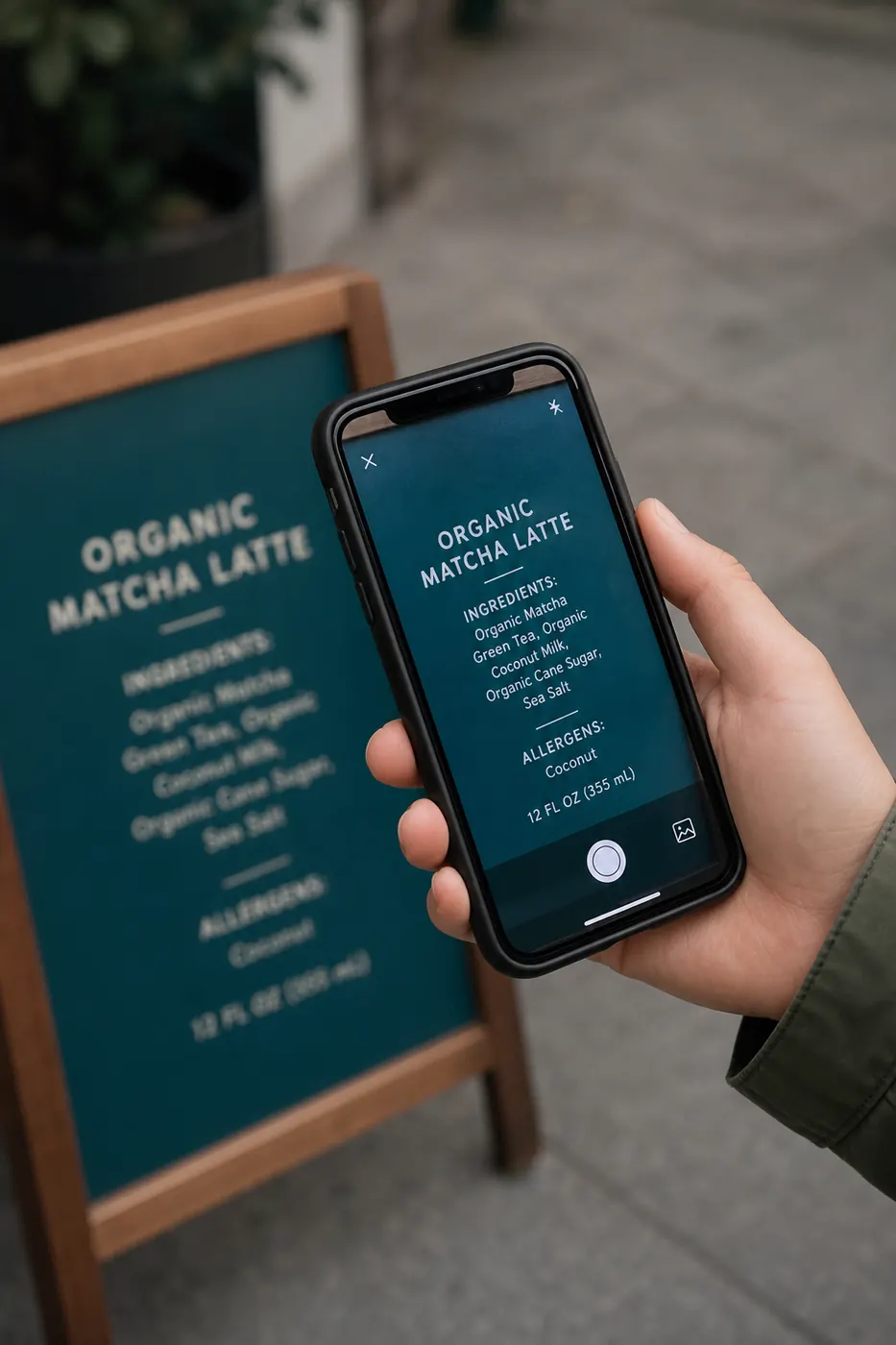
Typing out text from a photo feels harmless until you do it every day. Ten minutes here, twenty there—soon you have traded focused work for mindless transcription. Optical Character Recognition (OCR) flips that trade-off: the machine copies the characters; you spend time checking and using the result.
This article compares OCR to manual typing in real situations, with honest numbers and clear boundaries for when you should still type by hand. Throughout, we reference the free tool at imgtotext.in.
Time Cost: A Side-by-Side Comparison
Imagine a one-page printed letter of about 350 words.
Manual typing at 40 words per minute (a realistic average for careful work, not a typing-test burst) takes roughly nine minutes, plus fixes for typos you introduce yourself. Tired evenings make that slower.
OCR on a clear scan often returns usable text in under a minute, including upload and a quick read-through. Even with five minutes of cleanup for odd line breaks, you usually finish faster and with fewer self-made spelling errors.
Scale that to twenty pages of client PDF scans exported as images: manual typing can consume an afternoon; OCR turns it into a focused review session.
Accuracy: Where Humans and Machines Differ
Humans understand context. If a sentence is mid-thought, you infer the intended word even when the ink is faint. Machines excel at consistent fonts and high contrast but stumble on damage, stylized logos, and overlapping stamps.
Modern AI OCR—like the Gemini-powered path used first on imgtotext.in—closes much of that gap for printed text. Browser fallback with Tesseract.js remains available after you use the 10 AI OCR uses per visitor per day, so you can keep working without an abrupt stop.
Still, neither approach is perfect:
| Situation | Often better | |-----------|--------------| | Clean printed docs | OCR | | Dense numeric tables | OCR + careful verify | | Heavy cursive | Often manual (or OCR as draft) | | Creative / logo text | Manual or redesign | | Sensitive legal wording | Either, but always human-reviewed |
Error Types Matter More Than Raw Speed
Manual typing errors are often silent: you transpose digits in an account number and never notice until a payment fails. OCR errors are often visual: rn becomes m, or O becomes 0. Knowing the failure modes helps you proofread efficiently.
Practical rule: after OCR, search for numbers and proper nouns first. Those are where cost of a mistake is highest.
Example Scenario: Warehouse Shipping Labels
A small e-commerce warehouse photographs damaged packaging labels when ink smudges. Staff used to type SKUs into the warehouse system by eye—slow, and error-prone on long alphanumeric codes.
They switched to phone photos uploaded to imgtotext.in, language set to English, Clean Mode when the shot was high-contrast. The extracted SKU is pasted into the system, then confirmed against the physical package. Throughput improved, and digit transposition dropped because staff stopped inventing sequences under time pressure.
They still type when the label is shredded beyond recovery. OCR did not replace judgment; it replaced tedious copying.
Cognitive Load and Fatigue
Manual transcription occupies working memory with spelling and key positions. That leaves less attention for meaning: whether a clause makes sense, whether a date looks wrong, whether a price matches the quote.
OCR externalizes the copying. Your job becomes editorial: Does this paragraph match the source? Is the list complete? That is higher-value work and usually less exhausting.
Students pulling quotes into essays, and office teams filing vendor notes, both benefit from this shift. See also /blog/ocr-for-students and /blog/ocr-for-businesses.
Privacy and Control
Manual typing never sends your image anywhere. Online OCR does require uploading an image for processing. Choose tools that state they do not permanently store images. imgtotext.in is privacy-focused and does not keep permanent image storage—details on /about and /faq.
For highly classified material, stick to offline workflows or approved enterprise systems. For everyday docs—menus, slides, receipts, lecture boards—a reputable free OCR site is a reasonable middle ground.
Cost: Software vs. Time
Desktop OCR suites and mobile apps often lock features behind subscriptions. Online tools may throttle usage. imgtotext.in is free to use with a fair AI daily allowance (10 AI OCR uses per visitor per day) and continued browser OCR afterward. You can convert PNG, JPG, JPEG, WEBP, and GIF; copy text or download TXT.
Compare that cost to the hours you would spend typing. For most individuals and small teams, the time saved dominates any tooling trade-offs.
When Manual Typing Still Wins
- Very short text. Typing a five-word caption can be faster than opening a browser tab.
- Heavily redesigned layouts. You want a rewrite, not a faithful extract.
- Unreadable sources. If you cannot make out the characters yourself, OCR will guess wrongly.
- Intentional transcription practice. Language learners sometimes type for learning, not efficiency.
- Zero-upload policies. Some workplaces forbid cloud OCR entirely.
A Hybrid Workflow That Works
- Capture a clear image (screenshot preferred when the text is on-screen).
- Upload to https://imgtotext.in; pick the correct language among the twelve supported options.
- Enable Clean Mode for screenshots and sharp document scans when helpful.
- Copy or download TXT.
- Proofread numbers and names against the original image side by side.
- Paste into your final destination and apply formatting there.
This hybrid costs minutes, not hours, and keeps you accountable for correctness.
Learning Curve
Everyone already knows how to type. OCR requires learning a short checklist: prep image, choose language, review output. After two or three successful conversions, the habit sticks. The /how-it-works page explains what happens under the hood if you prefer to understand the stack—AI OCR first, then Tesseract.js in the browser as fallback.
Bottom Line
Manual typing is universal and controllable. OCR is faster for longer text, reduces fatigue, and is accurate enough for most printed and screenshot content when you verify critical fields. Use OCR as the default for copy work; fall back to typing when the source is tiny, barred by policy, or illegible.
Try It
Take one document you were about to retype and run it through imgtotext.in instead. Keep a timer. The comparison is usually convincing after a single page.
Related Reading
- /blog/how-to-extract-text-from-images — full extraction walkthrough
- /blog/ocr-for-businesses — team and workflow angles
- /blog/ocr-for-students — study and note workflows
Try free OCR now
Upload an image and extract editable text in your browser — no signup required.
Open OCR tool