July 13, 2026
Whiteboard OCR Tips for Meetings and Classes
Photograph whiteboards for cleaner OCR—glare control, crops, AI quota, and post-meeting review.
By Elango P · About this site
Whiteboards promise shared understanding and deliver glossy glare, marker ghosts, and handwriting that wanders off the baseline. Turning a board photo into editable notes is still worth it for meetings and classes—if you capture deliberately and review aggressively. Here is a practical playbook using imgtotext.in.
When Whiteboard OCR Helps
- Action items listed in semi-print marker
- Agenda columns you want in the meeting doc
- Diagrams with short printed labels (not the drawings themselves)
- Classroom outlines before the board is erased
When the board is pure cursive brainstorming, expect to rewrite. Handwriting reality check: /blog/handwriting-ocr, /handwriting-to-text. Students: /blog/ocr-for-students.
Capture Technique in the Room
- Wait for a pause so people step out of frame.
- Kill specular glare: shift left/right until the hot spot leaves the text. Ceiling LEDs are the usual villain.
- Fill the frame with the region you need; do not shoot the entire wall “for safety.”
- Shoot square-on; extreme angles shrink far-side letters.
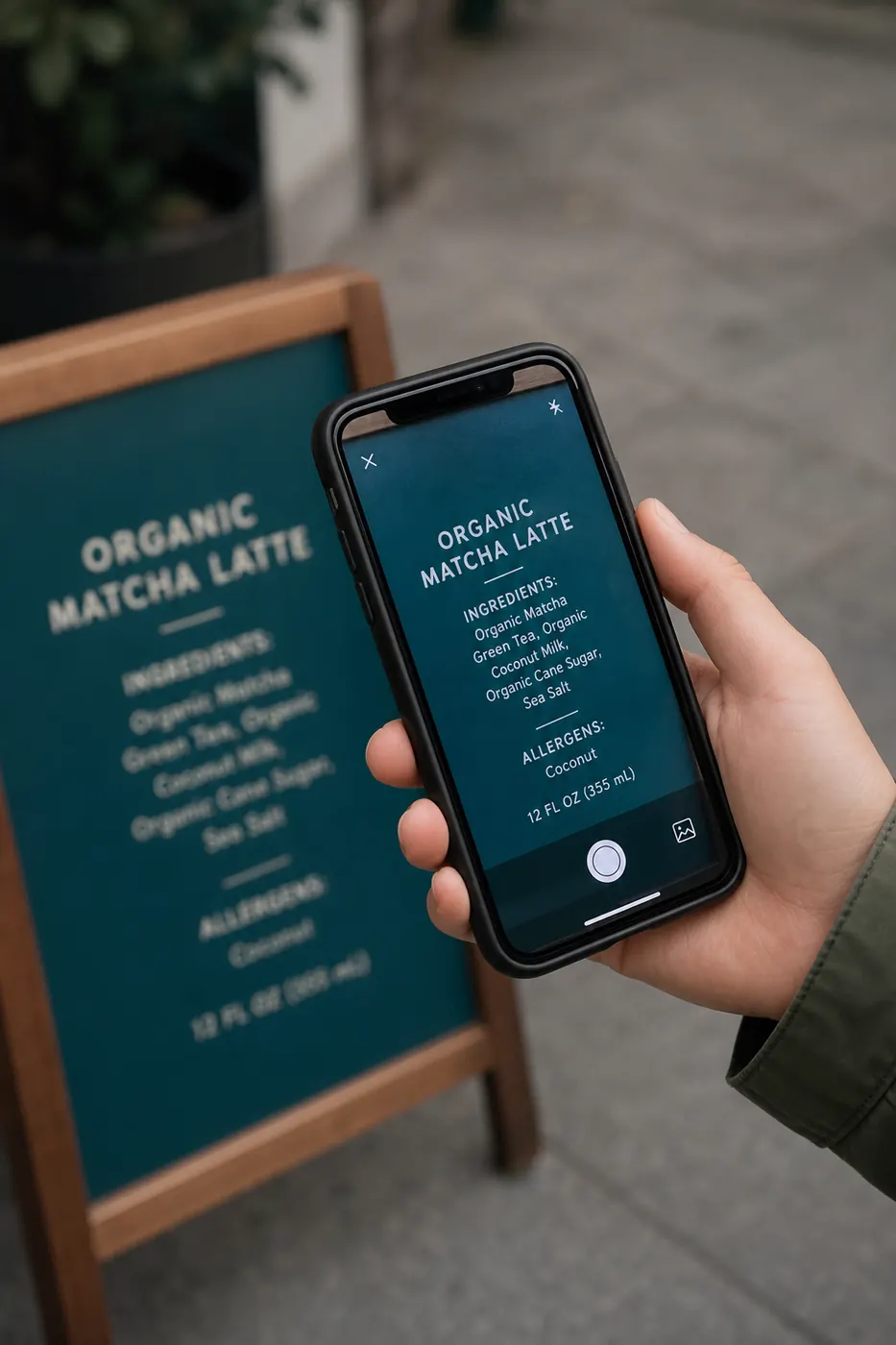
- Tap to focus on a mid-board word.
- Take two photos—wide for context, tight for OCR. Only upload the tight crop.
Mobile notes: /blog/ocr-for-mobile. Preprocessing after: /blog/image-preprocessing-for-ocr.
Before You Upload
Crop out confidential roadmaps you should not digitize. Privacy habits: /blog/ocr-security-privacy, /privacy-policy. Rotate until lines are horizontal. Bump exposure if the board is gray; avoid cartoonish contrast filters.
Then open https://imgtotext.in via /image-to-text. JPG uploads: /jpg-to-text.
Settings That Matter
- Language: match what was written—English or another of the twelve supported languages. Mixed scripts? Crop regions separately.
- Clean Mode: sometimes helps on high-contrast black marker; sometimes erases faint red marker. Compare once when stakes are high.
- Engine path: free AI OCR (Gemini via their API) first; after 10 AI OCR uses per visitor per day, Tesseract.js browser fallback continues. Whiteboards usually deserve AI quota.
Mechanics: /how-it-works. FAQ: /faq.
Meeting Workflow Example
End of sprint planning, the board holds five user stories in capital letters. Sam photographs the story column only, runs AI OCR on imgtotext.in, pastes into Jira draft tickets, then fixes story points that OCR read as letters. Time spent: four minutes. Typing from memory after the room cleared would have lost a story.
Classroom Workflow Example
A lecturer outlines three exam themes. Students should still take their own notes, but a shared OCR TXT in the class folder helps absentees—if the instructor permits photography. Always follow institutional rules about recording teaching materials.
Advantages
- Preserves content before custodians erase the board
- Faster than retyping long printed lists
- Works from the phone browser without a special “meeting OCR” license
- Hybrid AI + Tesseract keeps you moving during heavy workshop days
Screenshot of a digital whiteboard app (Miro, FigJam export)? Prefer PNG and /image-to-text or /blog/convert-screenshots-to-editable-text—usually cleaner than camera shots of a TV in a conference room.
Limitations
- Diagrams, arrows, and mind-map structure do not survive as meaningful layouts—only leftover words.
- Neon markers on glass boards often flare.
- Crowded boards with overlapping colors confuse reading order; crop to one zone per extract.
- OCR will not assign owners to action items reliably if names are scribbled.
- Accuracy tips still apply: /blog/ocr-accuracy-tips. Verify before trusting: /blog/free-online-ocr-checklist.
Best Practices
- Print-style capitals when you know OCR will follow.
- Leave padding between lines.
- Photograph immediately; do not rely on tomorrow’s memory of a wiped board.
- Crop ruthlessly to one topic cluster.
- Spend AI uses on boards; save browser OCR for crisp digital exports.
- Paste into the official notes doc and mark
OCR-draftuntil reviewed. - Avoid capturing badges or laptop screens in the background.
Formats accepted include PNG, JPG, JPEG, WEBP, and GIF—use whatever your phone exports without recompressing heavily.
Facilitator Tip
If you run workshops regularly, reserve a rightmost board column titled OCR and write only the decisions you want digitized in neat print. Keep messy ideation elsewhere. Your future OCR self will thank you.
Compare walking-speed capture with Lens vs dedicated OCR: /blog/ocr-vs-google-lens. Business archival: /blog/ocr-for-businesses.
Try It
At the next standup, write three neat bullet outcomes, photograph, and convert at imgtotext.in. If results disappoint, change capture—not just the button you click.
Marker and Surface Choices
Black or dark blue on matte white boards OCR best. Red and green markers lose contrast under warm lighting. Glass boards look sleek and reflect every overhead light—budget extra time for glare dancing. If your company buys supplies in bulk, stock “OCR-friendly” markers in meeting rooms and leave neon ink for celebrations.
Grid-dotted boards can inject phantom characters; crop tightly or choose blank surfaces for decision columns.
Remote and Hybrid Meetings
When half the team is on video, a webcam pointed at a wall board is usually worse than a phone photo uploaded to chat—and worse again for OCR. Prefer digital boards for hybrid sessions, then screenshot and run Clean Mode via /image-to-text. If leadership insists on physical boards, assign an in-room scribe who photographs for OCR immediately and pastes drafts into the call notes while context is fresh.
Do not OCR a pause-screen of someone else’s shared desktop without permission—confidential windows lurk.
After-OCR Facilitation Habits
Tag extracted lines with owners in the notes tool within five minutes. OCR gives text, not accountability. Convert ambiguous arrows into explicit sentences (“Priya owns API spike by Friday”). Delete the raw board photo from group chat if it contained sidebars that should not persist; keep the cleaned TXT in the official doc.
Facilitators who care about inclusion also check that OCR drafts are reviewed for misread names—few things sour a retro like publishing a mangled teammate name in the summary email.
Lighting Kits for Frequent Meeting Rooms
A cheap clip lamp aimed at the board from 45 degrees often beats another year of complaining about OCR quality. Avoid pointing projectors at the same board you intend to photograph. If rooms have auto color-tunable LEDs, lock a neutral setting during workshops so whiteboards do not shift pink mid-session.
Document the “good corner” of each room where glare is minimal; facilitators learn faster from floor plans than from theory.
Multilingual Boards
International teams may mix English headers with local-language notes. Crop by language region and set OCR language accordingly across the twelve supported options when using imgtotext.in. Mixing scripts in one pass is a frequent source of junk tokens that poison the whole extract.
Proper nouns from other languages still need human spelling checks even when the bulk language setting is correct.
Accessibility Follow-Through
OCR drafts help teammates who could not see the board from the back row—but only after review. Announce in the meeting that an OCR draft will land in chat within ten minutes, then actually do it. Empty promises train people to photograph chaos themselves, multiplying sensitive uploads.
Timeboxing OCR After Workshops
Add five minutes to the agenda labeled “board capture.” If it is not on the agenda, it loses to hallway conversations and the board gets wiped. During that five minutes: photograph, crop on phone, upload to imgtotext.in, paste draft, assign owners. The ritual matters more than perfect accuracy on day one.
Keep a spare charged phone as the “room camera” if facilitators rotate and personal devices vary wildly in quality.
Related Reading
- /blog/ocr-for-mobile — paper vs board
- /blog/how-to-extract-text-from-images — general steps
- /blog/what-is-ocr — fundamentals
Try free OCR now
Upload an image and extract editable text in your browser — no signup required.
Open OCR tool